Before you start
- A Vior account as a coach or organization admin. Connecting an AI assistant is available to coaches and organization admins for now.
- An account with one of these assistants: Claude, ChatGPT or Gemini. A free account works.
- A computer. Setup happens in a web browser or desktop app. Once connected, you can use Vior from the assistant's mobile app too.
1. Copy your connector address
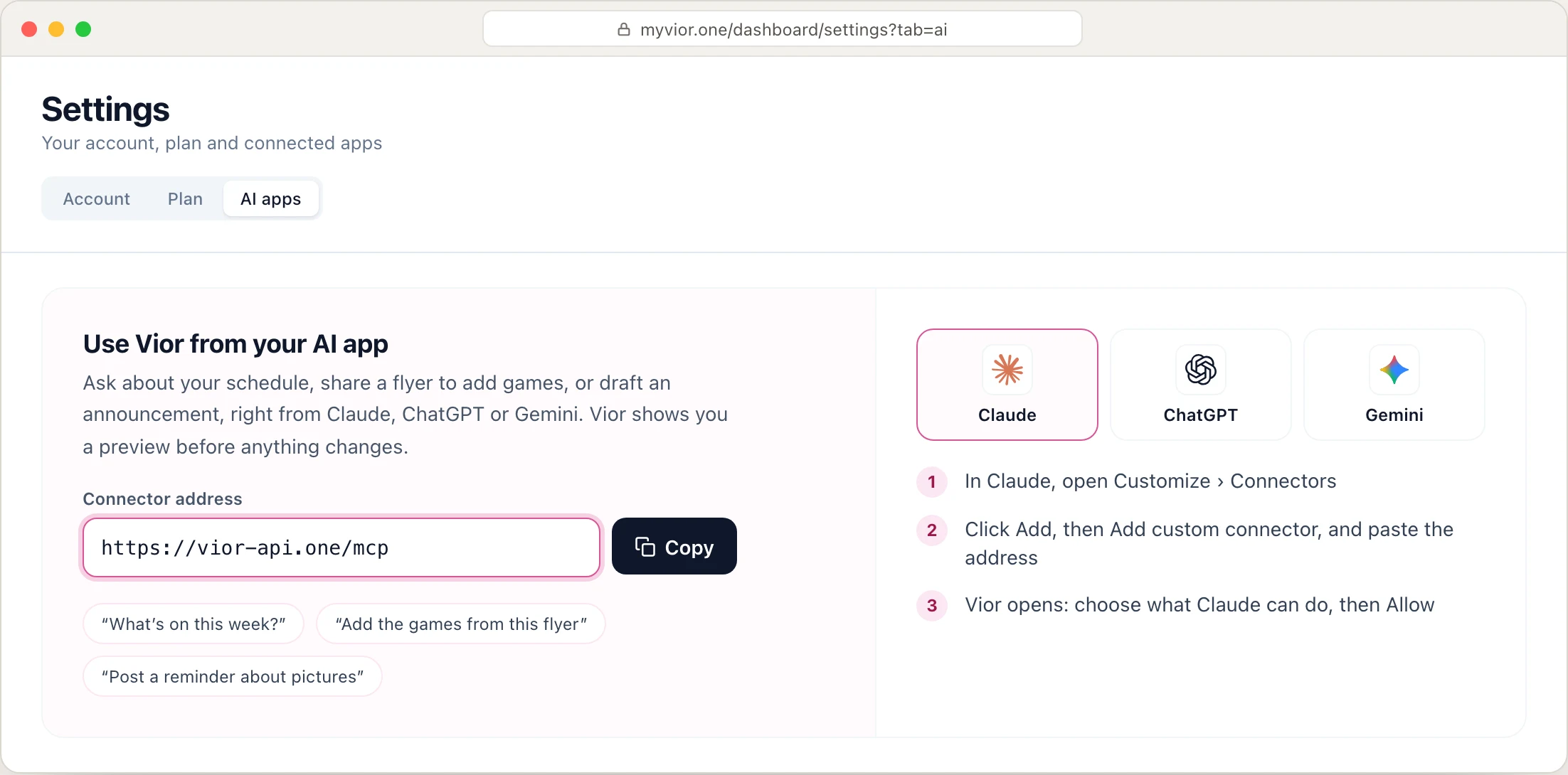
Every assistant asks for the same address. You can copy it here:
https://vior-api.one/mcp It's also in Vior. Open Settings › AI apps, where you'll find the address, short setup steps for each assistant, and the apps you've already connected.
2. Add Vior to your assistant
Pick your assistant. The steps match each app's menus as of November 2, 2026; if a label looks slightly different, look for the closest match.
Claude
Works on: every plan, including Free. Add it on claude.ai or the Claude desktop app.
- Open Claude and go to Customize › Connectors.
- Click Add at the top right, then Add custom connector.
- Enter Vior as the name and paste
https://vior-api.one/mcpas the MCP server URL. Click Continue.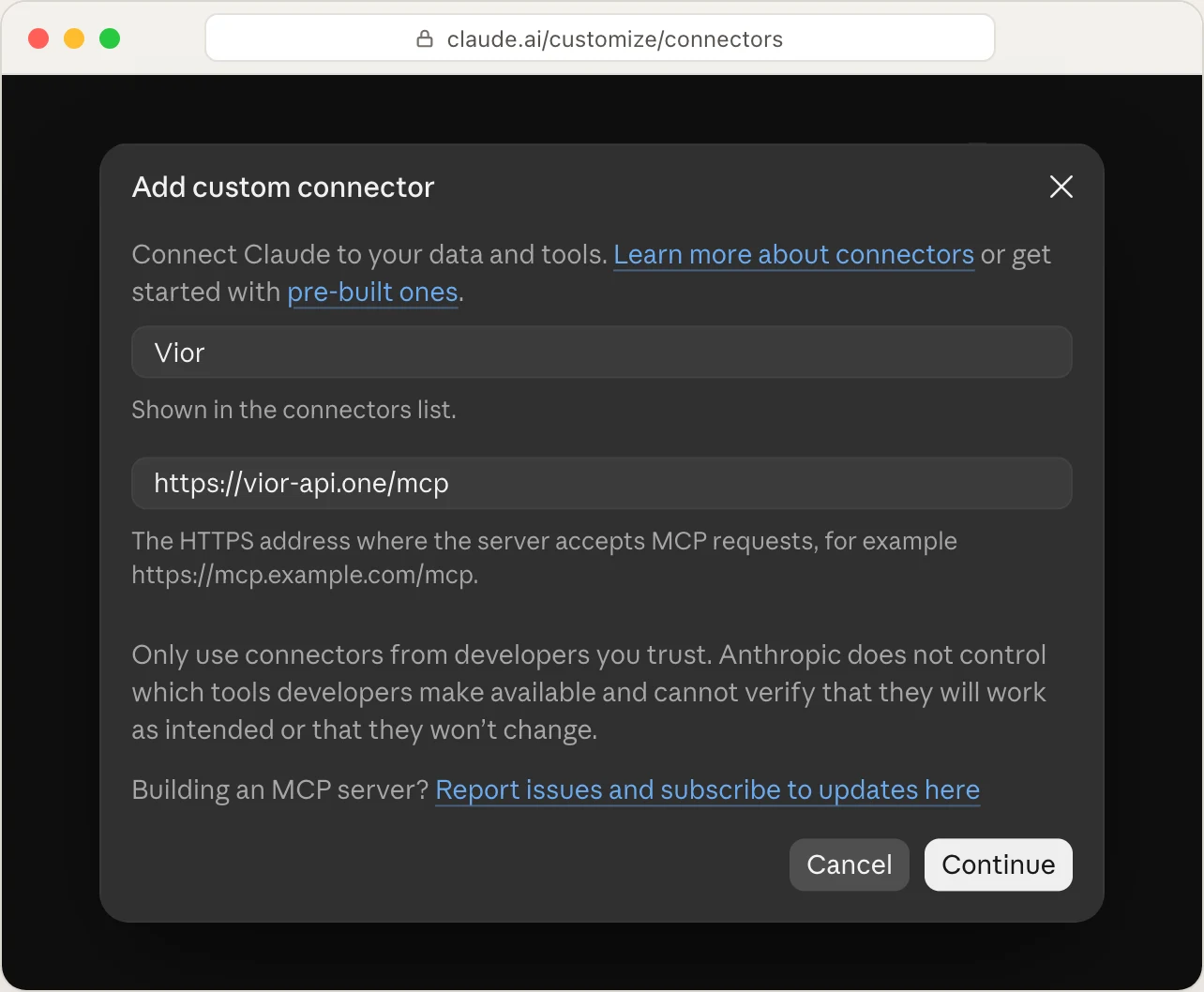
Claude, Add custom connector. - Claude detects Vior's sign-in settings (Sign in now and Register automatically are marked Detected). Leave them as they are and click Add.
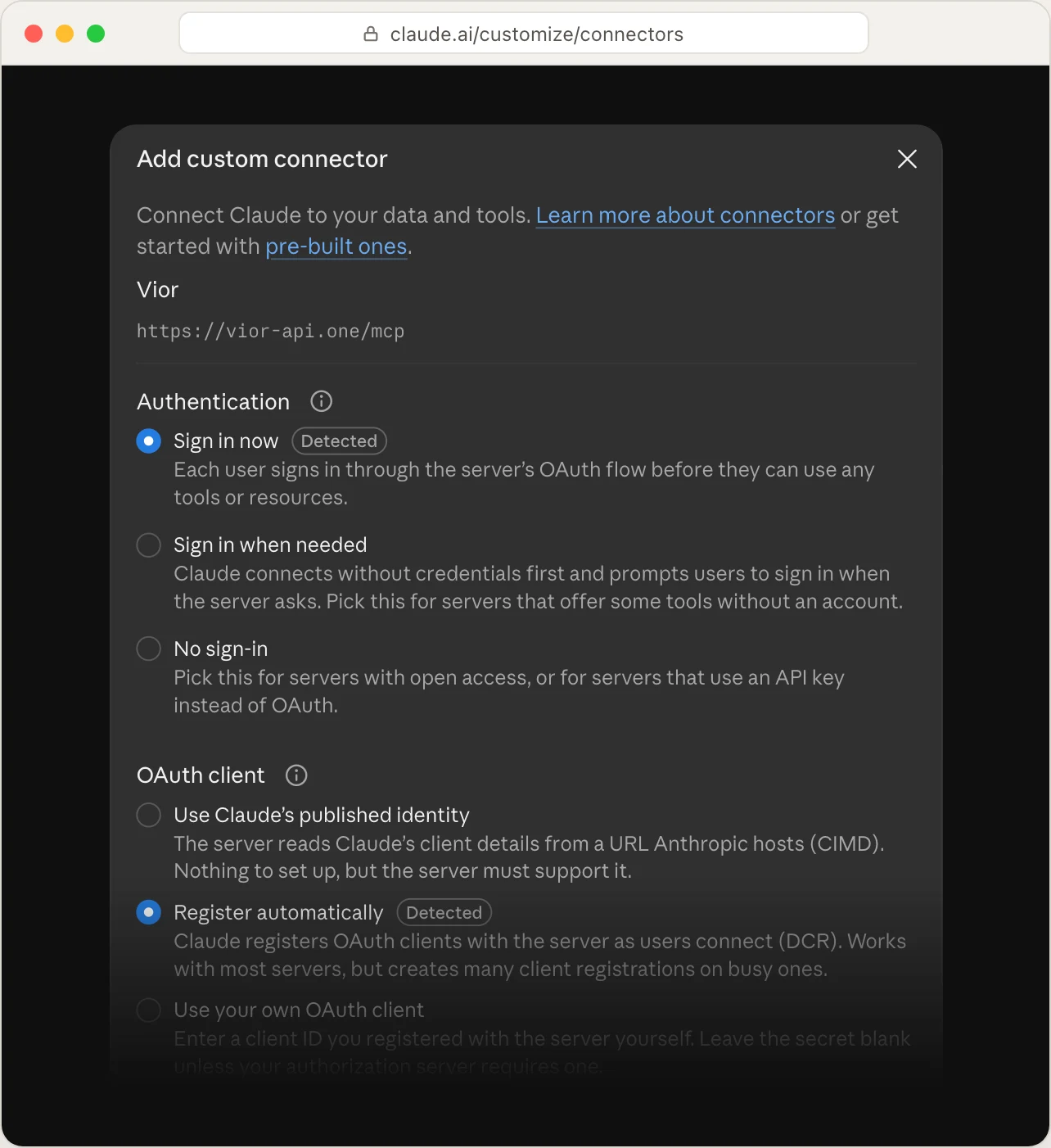
Leave the detected settings as they are. - Vior opens in a new window. Sign in if asked, then approve access (step 3 below).
Use it in a chat: click + at the bottom left of the message box, choose Connectors, and turn on Vior. On your phone, Vior is available in the Claude app once you've added it on the web or desktop.
ChatGPT
Works on: any ChatGPT account, including Free. Add it on the web at chatgpt.com.
- On chatgpt.com, open Plugins.
- Click Add at the top right, then Add custom MCP server.
- Enter Vior as the name and paste
https://vior-api.one/mcpunder Connection. Leave Authentication set to OAuth. - Tick I understand and want to continue, then click Create as a plugin.
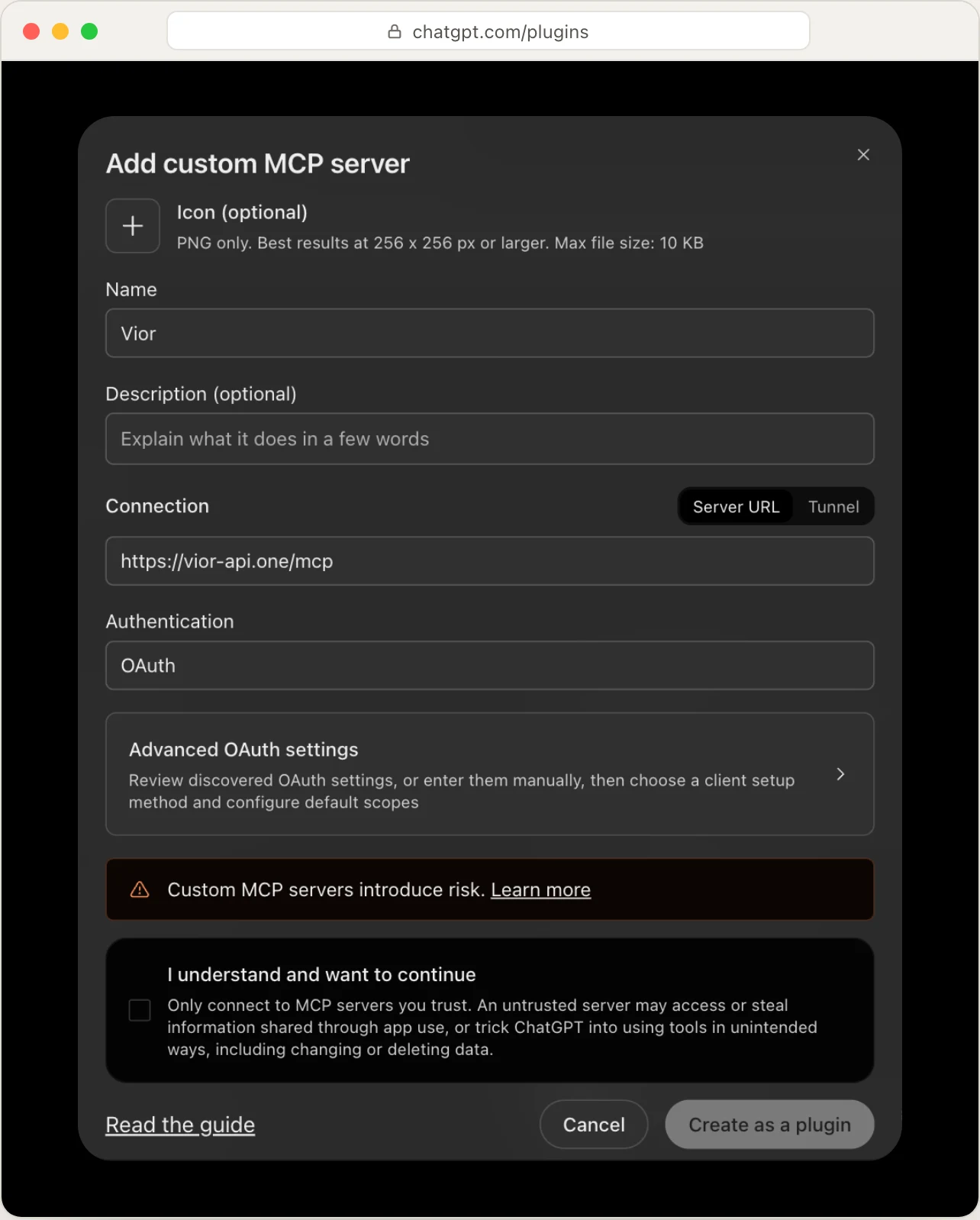
ChatGPT, Add custom MCP server. - Vior opens so you can sign in and approve access (step 3 below).
Use it in a chat: click Plugins under the message box (or type @) and choose Vior. ChatGPT asks before it uses a tool that makes changes; Vior then shows its own preview to confirm.
Gemini
Works on: personal Google accounts in the US, for people 18 and older, in English, with Keep Activity turned on. Work and school Google accounts can't add custom apps yet.
- On a computer, go to gemini.google.com and open Settings › Personal Intelligence › Connected Apps.
- Click + Custom at the top right.
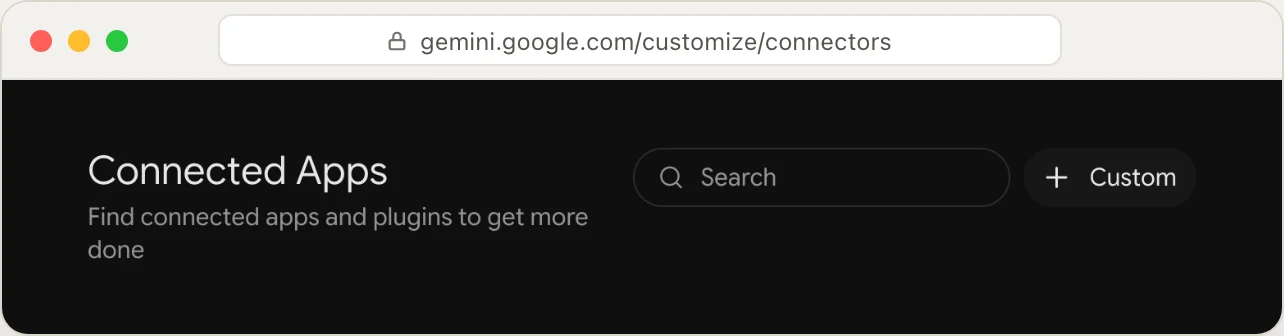
Gemini, Connected Apps. - Paste
https://vior-api.one/mcpas the MCP Server URL and click Next. You don't need to change Additional settings.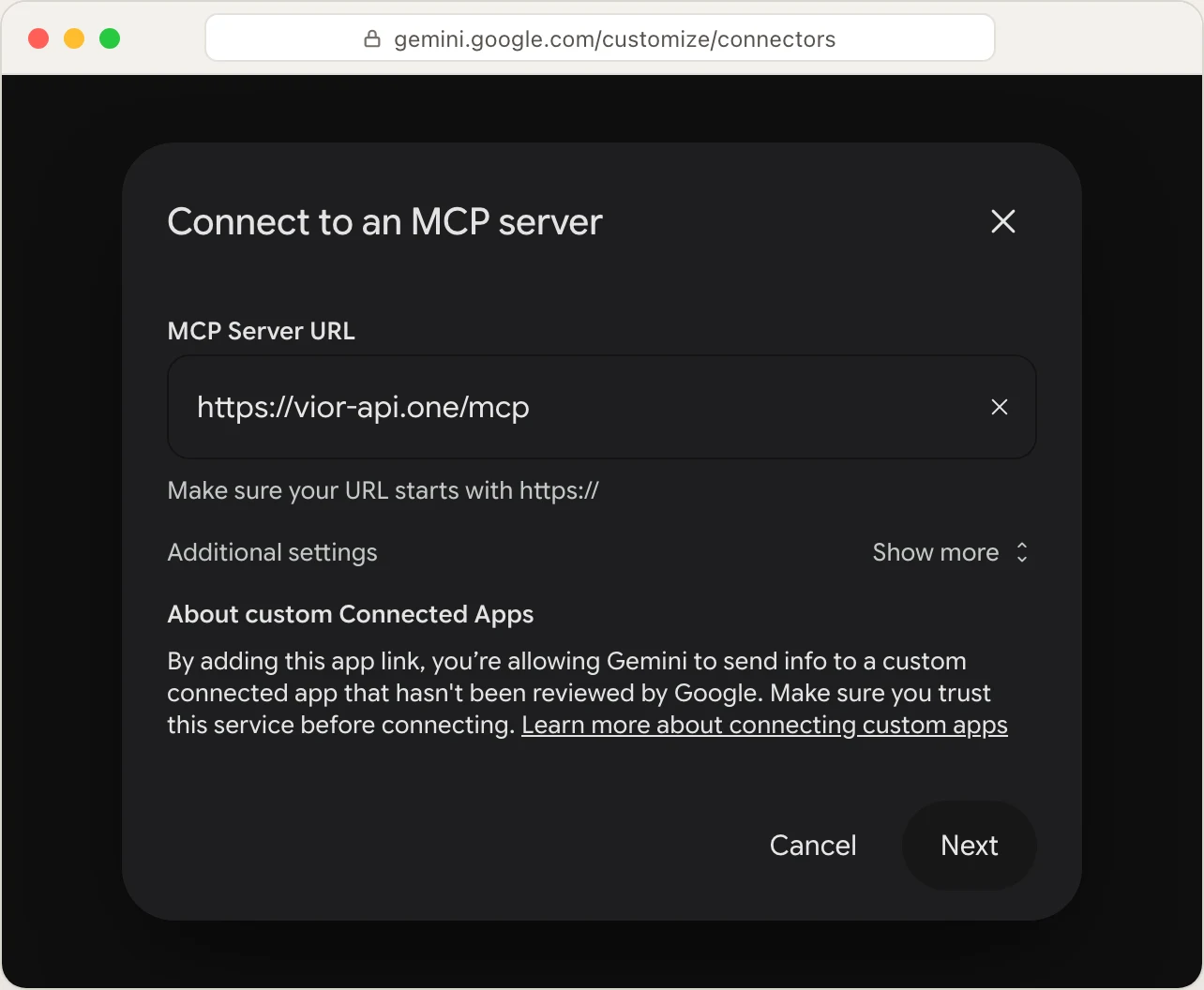
Gemini, Connect to an MCP server. - Vior opens so you can sign in and approve access (step 3 below).
Use it in a chat: type @ and choose Vior. Once it's connected on the web, it works in the Gemini mobile app too.
3. Approve access in Vior
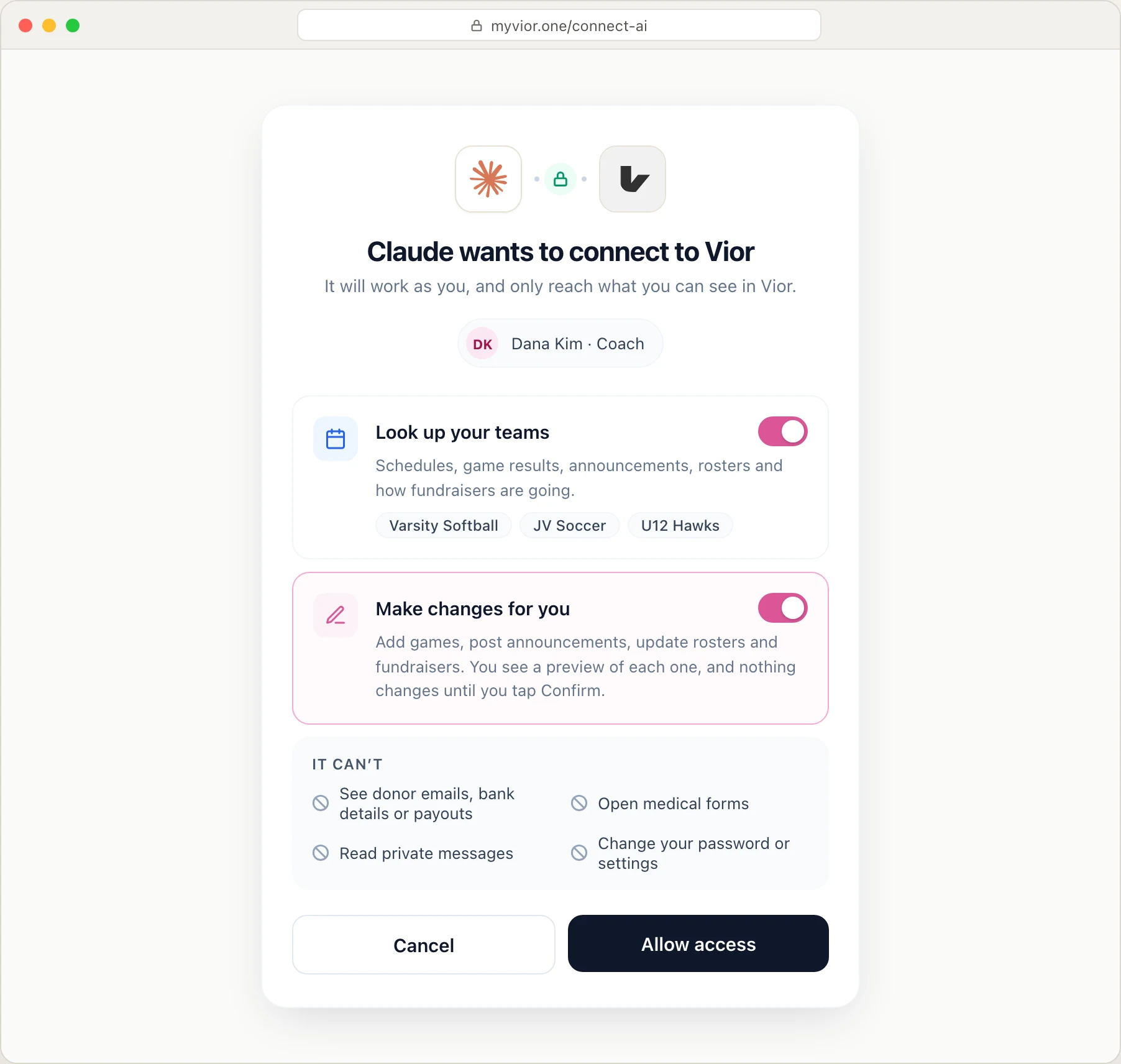
After you add the address, your assistant opens Vior's sign-in page. Sign in with your Vior account, then choose what the assistant can do:
- Look up your teams: schedules, game results, announcements, rosters and how fundraisers are going.
- Make changes for you: add games, post announcements, update rosters and fundraisers. You see a preview of each one, and nothing changes until you tap Confirm.
- Website (optional, for website editors): let it build a draft of your organization's website. You still publish from the Vior editor.
Click Allow access. The assistant works as you and only reaches what you can already see in Vior.
4. Start using it
Ask in plain words. A few things to try:
- “What's on our schedule this week, and who hasn't RSVP'd?”
- “Add the games from this flyer to JV Soccer.”
- “Draft an announcement that practice moves to 4:30 on Tuesday.”
- “How is our spring fundraiser doing?”
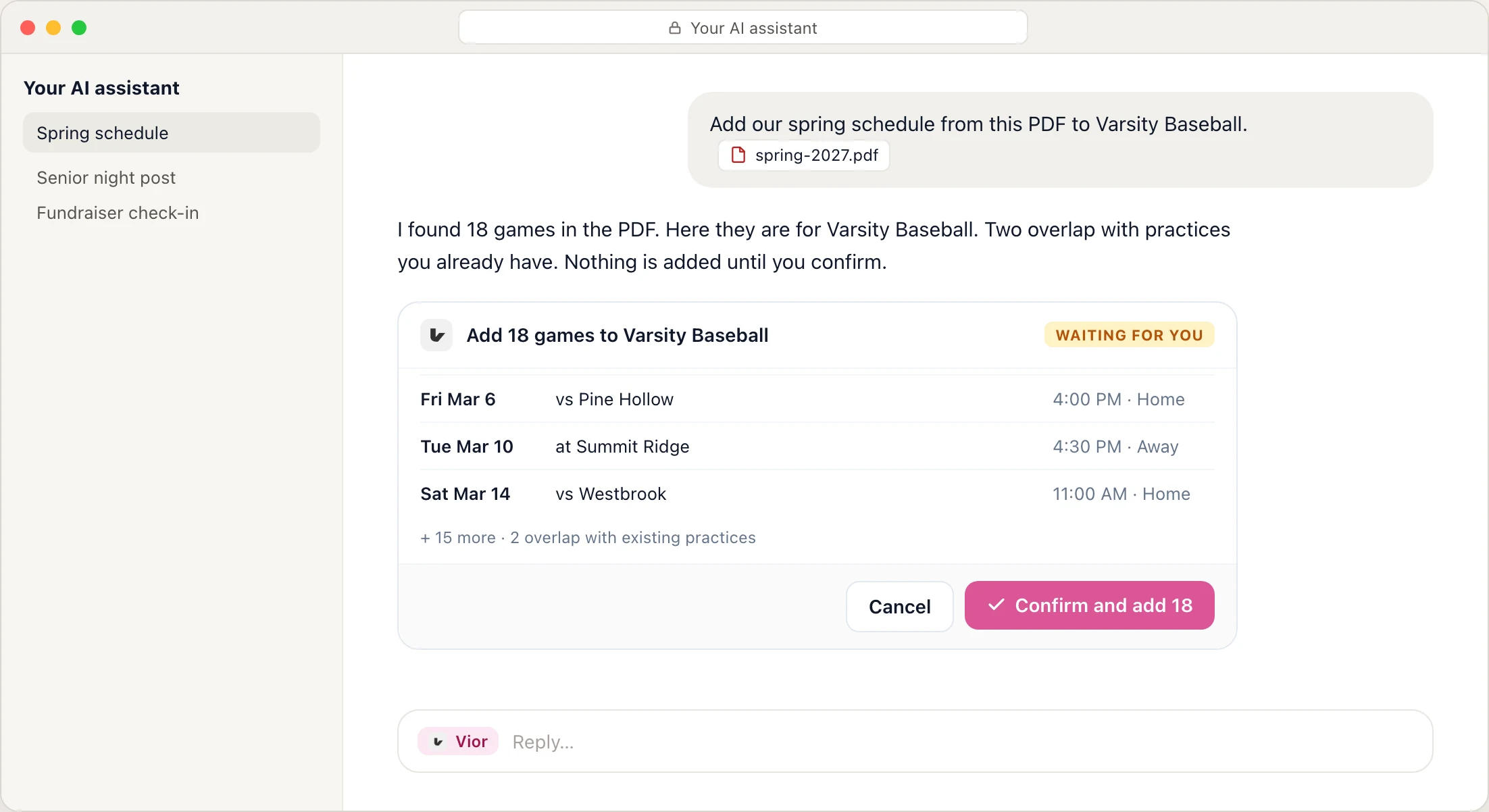
When you ask for a change, Vior shows a card with exactly what will happen. Review it and click Confirm, or Cancel. If the card doesn't appear in your assistant, the change waits for you in Vior under Settings › AI apps.
Manage or disconnect
- In Vior: Settings › AI apps lists every connected assistant, what it's allowed to do, and an activity log of each change. Remove an assistant there to cut off its access immediately.
- In Claude: Customize › Connectors, then Remove next to Vior.
- In ChatGPT: open Vior under Plugins to turn it off or remove it.
- In Gemini: Settings › Personal Intelligence › Connected Apps, then More details › Disconnect (or Remove app).
To change what an assistant can do, disconnect it in Vior and connect again. Vior asks you to choose permissions each time.
Troubleshooting
I don't see an option to add a custom connector
In ChatGPT, turn on Developer mode first (Settings › Security and sign-in). In Gemini, custom apps need a personal Google account in the US. On a Claude Team or Enterprise plan, or ChatGPT Business, Enterprise or Edu, an admin has to add Vior first.
Vior says connecting is for coaches and organization admins
For now, connecting your Vior account is available to coaches and organization admins. Athletes and parents can't connect an assistant yet.
The Vior sign-in window didn't open
Your browser may have blocked the pop-up. Allow pop-ups for the assistant's site, then try adding Vior again.
I connected, but the assistant can't make changes
Check that you turned on Make changes for you when you approved access. If you didn't, disconnect in Vior › Settings › AI apps and connect again.
I asked for a change and nothing happened
Changes wait for your confirmation. Look for the Vior card in the chat, or open Settings › AI apps in Vior, where pending changes are listed under “Waiting for you”.
Other assistants
Vior works with any assistant that supports custom connectors with a secure sign-in. Use the same address, https://vior-api.one/mcp.
Mistral Le Chat
Open Connectors, click + Add Connector, choose the Custom MCP Connector tab, enter Vior as the name and paste the address, then click Connect.
Perplexity
On Pro, Max or Enterprise: open Plugins, choose Add custom › Add MCP connector › Remote, paste the address, set Authentication to OAuth under Advanced, then click Add and sign in.
Microsoft Copilot
The personal Copilot app doesn't support custom connectors. For Microsoft 365 Copilot at work, your IT admin needs to set it up; contact us and we'll help.
Need a hand?
We're happy to walk you through it. Chat with us or email support@vior.one.